Connect
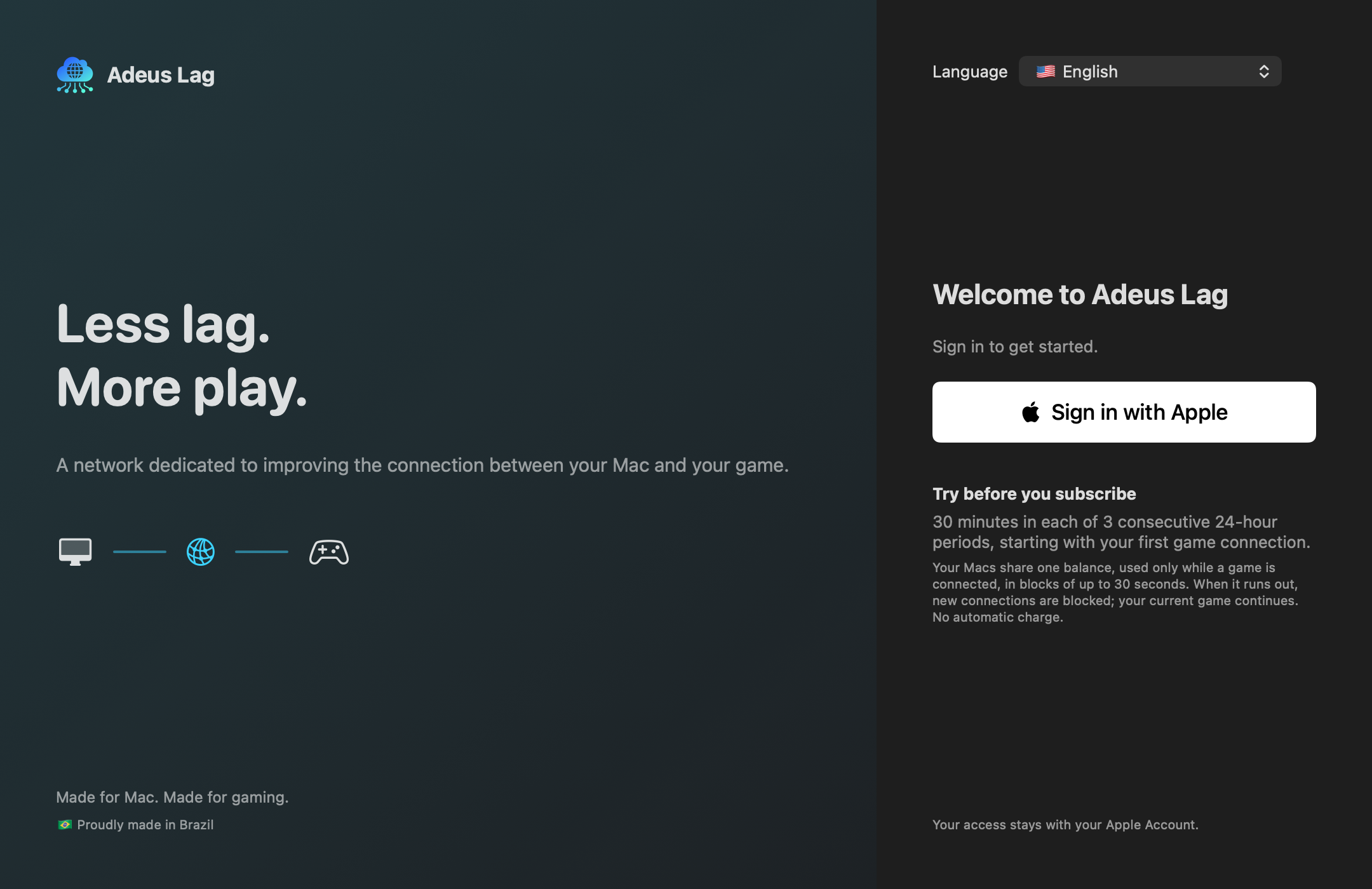
Download and install the app. On Windows, sign in with Apple or Google; on Mac, with Apple. Use the same sign-in method in My account.
 Adeus Lag
My account
Adeus Lag
My account
If your main internet fails, Adeus Lag can keep your Tibia session connected using a backup connection.
For backup, you need two independent connections, both available and configured. For example: home internet + your phone’s mobile data over USB.
Windows open beta, with automatic updates through the app. macOS testing continues through TestFlight.
Select the image to enlarge.
You get a 30-minute allowance in each of three consecutive 24-hour periods. The clock starts when your first game connection is accepted by the service, not when you download the app or sign in.
Watch the switch from the main connection to the backup during a Tibia session, in one continuous recording.
The video shows a test in a specific setup. Continuity depends on the available connections and network and game conditions.
Open on YouTubePlaying the video loads YouTube content, subject to its policies.
How to set upChoose your home internet as the primary connection. If you have another independent connection, such as a phone sharing data over USB, set it as backup.
Download and install the app. On Windows, sign in with Apple or Google; on Mac, with Apple. Use the same sign-in method in My account.
Enable mobile data and USB tethering on your phone. With both networks available on your computer, choose the primary and backup networks in Connections.
Connect your game through the app. Try it first at a safe moment, out of combat. Check that the backup works before relying on it.
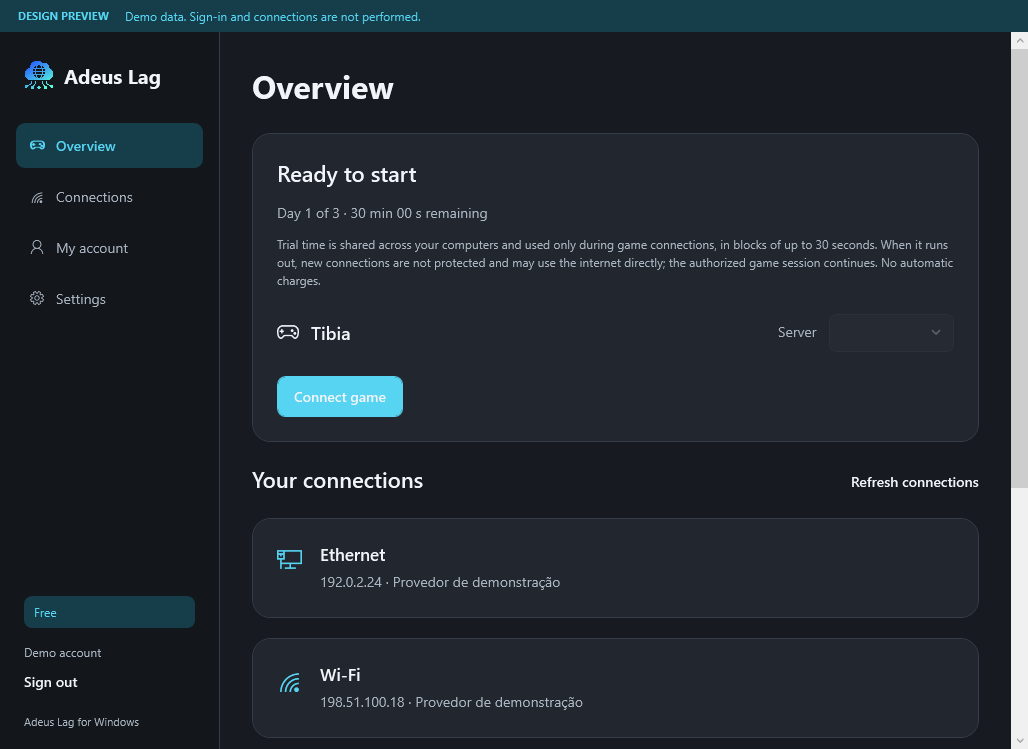
Monitor your connections and adjust app preferences on Windows and Mac.
You choose your main internet connection and your backup.
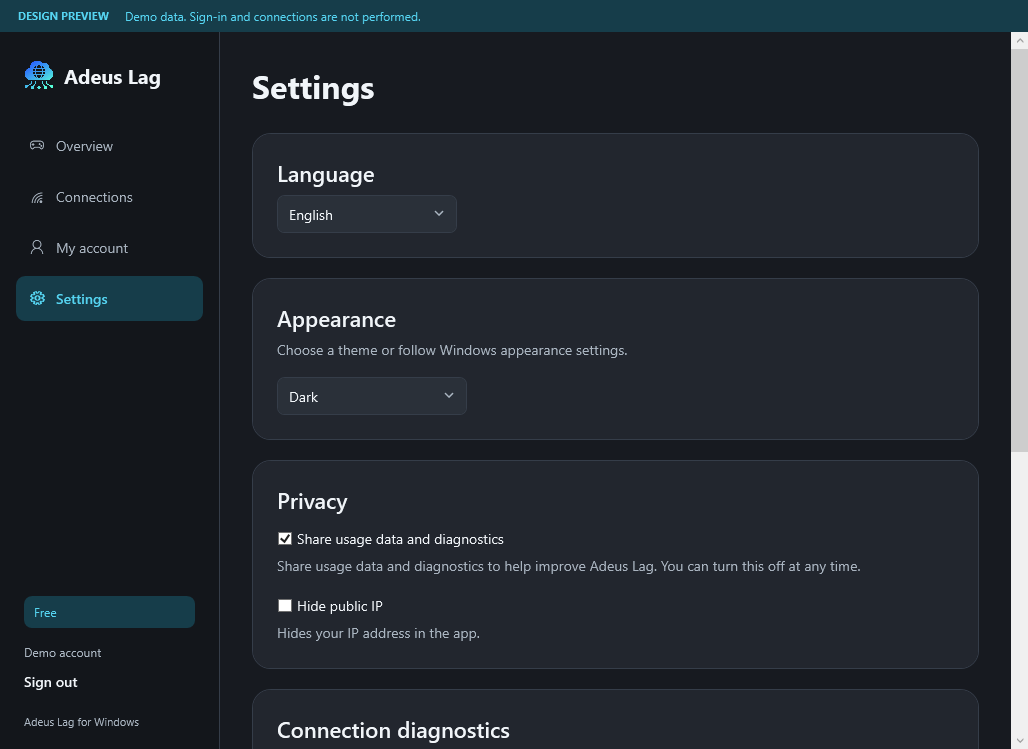
Windows app interface.
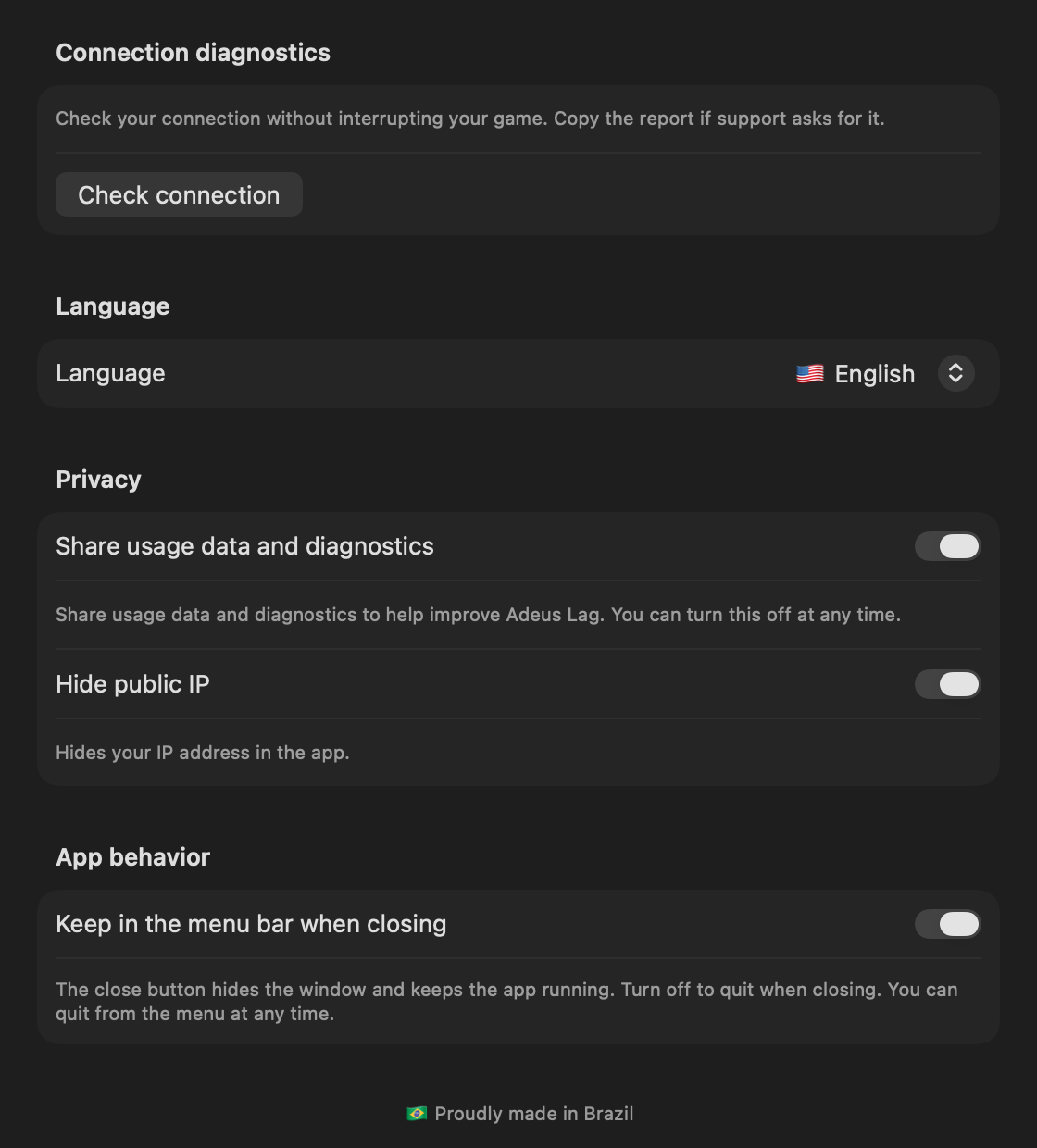
macOS app interface.
Select the image to enlarge.
macOS 15 or later, or Windows 10/11 on a 64-bit Intel or AMD PC. Check the requirements for each app below.
Install the game separately. Adeus Lag does not provide the Tibia client or an account.
Keep two independent connections available and configured. Wi-Fi and a cable on the same router do not provide a backup if that router’s internet goes down.
Adeus Lag is run by Marcio Luiz Barbato Junior. Get in touch if you have a question before installing or need help with setup.
Contact the person responsibleThe service uses account and connection data to operate and provide support. Read the policy to understand the purposes, data sharing, and how to request information or deletion.
Read the privacy policyCheck requirements and availability before getting started.
For Intel and AMD PCs running 64-bit Windows 10 or 11.
For Macs running macOS 15 or later.
Manage computers, invitations and your subscription in My account. Website subscriptions are available in Brazil for R$ 19.90/month, with automatic renewal through Mercado Pago. App Store purchases are managed by Apple.
The backup must be connected, configured, and have internet access. If both connections fail, it cannot keep your session connected. Adeus Lag also cannot fix a game server outage and does not promise lower ping in every situation.
This adjustment is not a general requirement for Adeus Lag. If connection selection does not work on your computer, contact support before changing advanced network settings.
The focus here is keeping a backup connection ready for Tibia. To see whether it fits your setup, configure two independent internet connections and use the free trial. We do not promise the same results as another service.
There are three consecutive 24-hour periods, each with a 30-minute allowance, starting from the first accepted game connection. There is no automatic charge. See trial terms
No. You can use the app with one connection. Backup requires a second independent internet connection to be available and configured.
No. Switching depends on the available networks and internet and game conditions. No service can guarantee an uninterrupted connection.
No. Adeus Lag is an independent service and is not affiliated with CipSoft.
Windows is in open beta. Download the installer on this page, install it and sign in with Apple or Google. Manage your access in My account. The Mac app remains in testing through TestFlight; contact our team about availability.
Find the app for your computer and learn how to get started. Already using Adeus Lag? Open your account to manage your access.
Explore the apps